Bear in mind, that the user interface is only a tiny part of the application, and you will only interact with it a couple of times, mainly to setup your preferences. The core of the program lies in the invisible part working in the background.
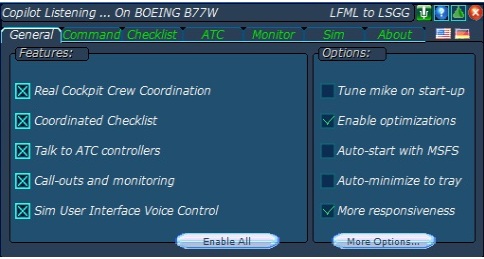
The General Page, where Application Features can be enabled or disabled, and various options can be set.
If running a non-English edition of Windows or the flight simulator, you will see a couple of flags that allow you to switch the user interface language between English and any of the following languages, German, Spanish, French, Italian and Portuguese.
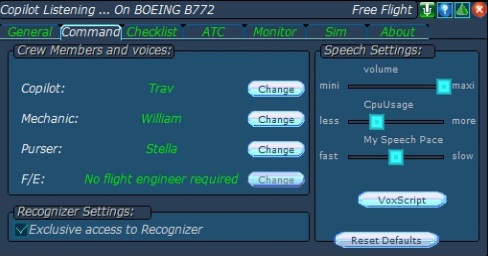
The Command page, where you can select one of the installed voices to use for crew members. Choose from 7 recorded high quality voice packs, including English US, UK, Australian, German, and French accents.
You can also fine tune the speech recognition engine.
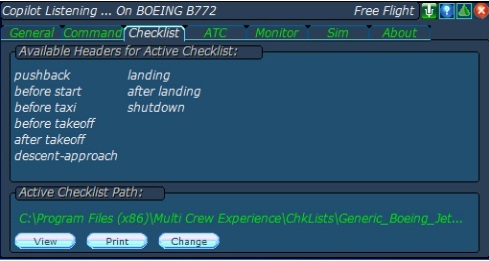
The Checklist page, where you can see the different headers available. You can also select your own custom made checklist.
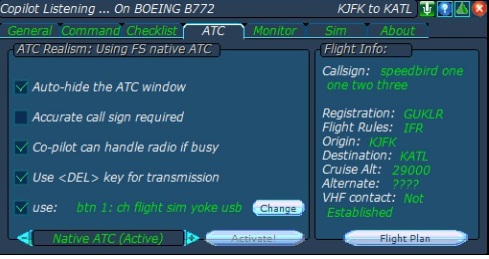
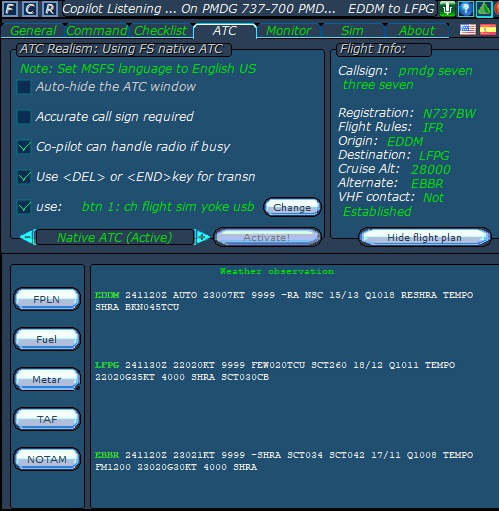
The ATC page, for selecting the options you think are better for you. Note the possibility of using a joystick button, as a push to talk button, for message transmission. So, it is time to get away from those bad habits, of reaching out for the keyboard to interact with ATC!
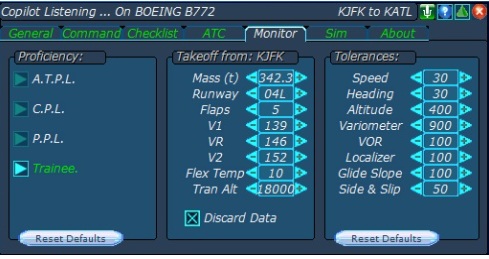
The monitor page, where you can specify the proficiency level you are seeking, and set some operational parameters.
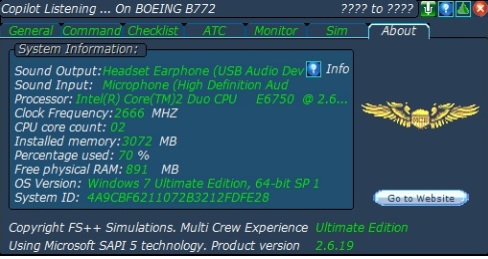
Finally, the About page, that just gives an overview of your hardware setup.

MCE can be minimized to a very narrow window, taking little screen space.
It's also completely hidden when the simulator is in full screen mode.
MCE ships with a variety of tools that help you accomplish things
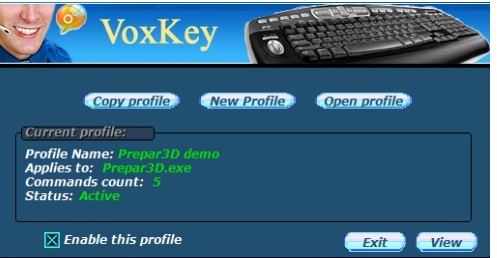
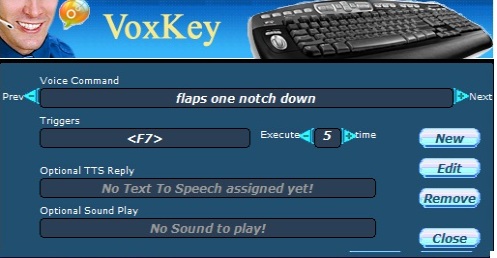
Voxkey is a tool that allows you to create your own voice commands that will be converted to keyboard strokes. It's a bit like getting a free VoiceBuddy dedicated to creating custom commands for you
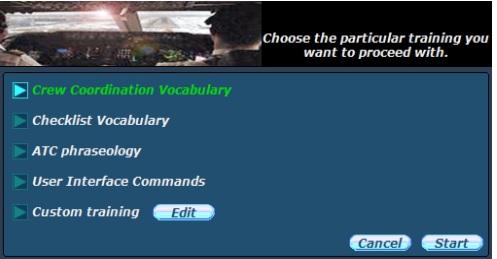
MCE ships with a speech training tool that allows you to train your voice on custom words and sentences.
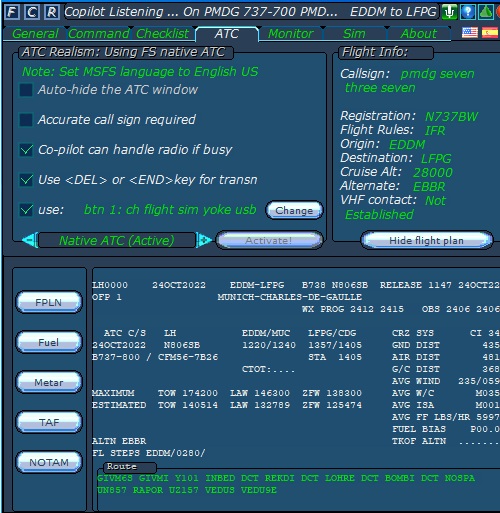
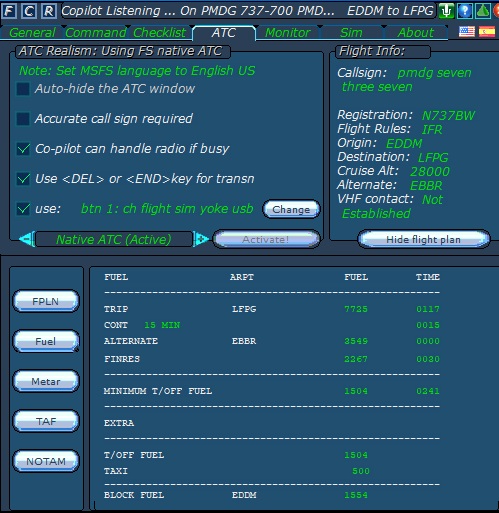
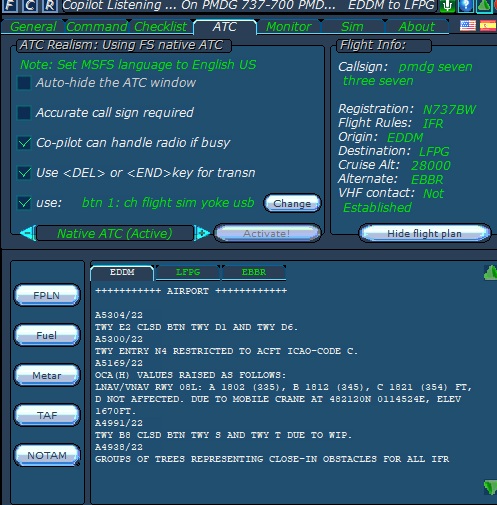
MCE now fully intergrates with Simbrief, and adds a further level to your FO where he/she will know in advance what the plan and loading is.

Placeholder description for this guide section.
Placeholder description for this guide section.